Android Mobile VR in 2026: Unleashing xMonter with Google VR Services
Transform your Android smartphone into a high-end VR portal. Follow our 2026 guide to setting up xMonter, Google VR Services, and Chrome for the ultimate immersive experience.
1. Introduction: The Open Frontier of Mobile VR
In 2026, Android remains the most versatile platform for mobile VR. Thanks to the open nature of the OS, users can leverage high-resolution AMOLED displays and powerful Snapdragon processors to access specialized platforms like xMonter. By combining Google VR Services with modern web standards (WebXR), your Android phone becomes a gateway to professional-grade immersive content without the need for a $3,000 standalone device.
2. Technical Focus: The Power of Android 16 & Beyond
By 2026, Android devices have integrated advanced spatial processing directly into the kernel, providing a smoother experience for "Shell VR" (using a phone inside a headset).
| Feature | 2026 Android Flagship (e.g., S26 / Pixel 10) | Impact on xMonter Experience |
| Display | Dynamic LTPO AMOLED 3 (1-144Hz) | Eliminates flicker and provides deep, immersive blacks. |
| Resolution | QHD+ (up to 500+ ppi) | Provides crisp text and detailed 3D environments. |
| Processing | Snapdragon 8 Gen 5 / Tensor G5 | Allows for 8K 60fps VR video decoding with zero lag. |
| Software | Google VR Services (Latest Build) | Optimized head-tracking and distortion correction. |
3. Guide to Using xMonter with Google VR Services
To access the high-fidelity content on Top VrPorn, follow this standardized 2026 workflow.
Step 1: Preparation for First-Time Users
Before diving in, you need the underlying software layer.
-
Download Google VR Services: If not pre-installed, download the Google VR Services app from the Google Play Store. This app handles the tracking and lens distortion correction for your specific phone model.
Step 2: Set Up Your Web Browser
-
Open your smartphone's web browser. For 2026's latest WebXR optimizations, we highly recommend Chrome. Ensure it is updated to the latest version to support hardware-accelerated VR.
Step 3: Access xMonter
-
In Chrome, navigate to the official portal: https://topvrporn.net
Step 4: Enable VR Mode
-
On the xMonter site, tap the "Play" button on your desired content.
-
Look for the VR Mode Icon (resembling a headset 🥽) on the player interface and tap it. Your screen will split into a side-by-side stereoscopic view.
Step 5: Prepare Your Device
-
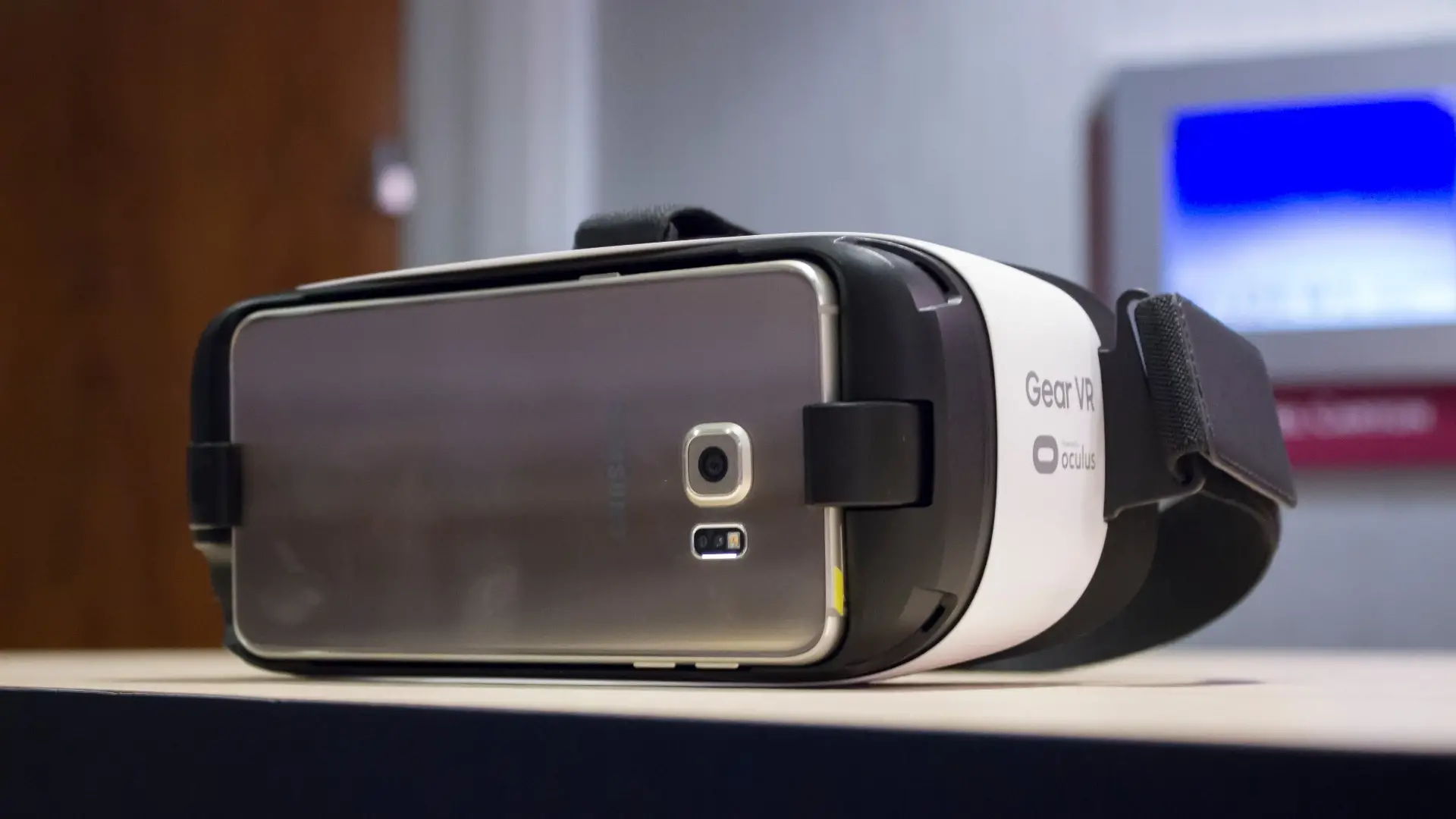
Carefully place your smartphone into your VR headset. Ensure the center line of the screen aligns perfectly with the headset's divider to avoid eye strain.
Step 6: Begin Your Experience
-
Once secured, put on the headset and adjust the straps. You are now ready to explore xMonter's virtual reality world.
4. Recommended Hardware for 2026
While any shell works, these devices provide the best optics and comfort for Android users:
| Headset Shell | Compatibility | 2026 Estimated Price | Focus |
| Samsung Gear VR (Legacy) | Samsung S-Series | $40 - $60 (Used) | Best-in-class optics & comfort. |
| Google Cardboard V2 | Universal | $10 - $15 | Ultra-portable and affordable. |
| Daydream View (Refurbished) | Pixel/Selected Androids | $30 - $50 | Soft fabric, lightweight design. |
| Homido V2 | Universal (up to 7") | $60 - $75 | Adjustable IPD and focal distance. |
5. Important Safety & Performance Notes
-
Battery: VR is resource-intensive. Ensure your device is fully charged or connected to a fast-charging power bank.
-
Safety Zone: Use this experience in a spacious, clear area. Even in 3DoF, it is easy to lose your sense of direction.
-
Health: If you feel dizzy or experience "sim-sickness," take the headset off immediately. Modern 120Hz screens reduce this, but your brain may still need time to adjust.
6. Summary: The Android Advantage
Android VR in 2026 is about freedom and choice. By using the xMonter platform via Google VR Services, you bypass the "walled gardens" of expensive ecosystems. You get a high-resolution, personalized theater and interactive experience powered by the device you already use every day.